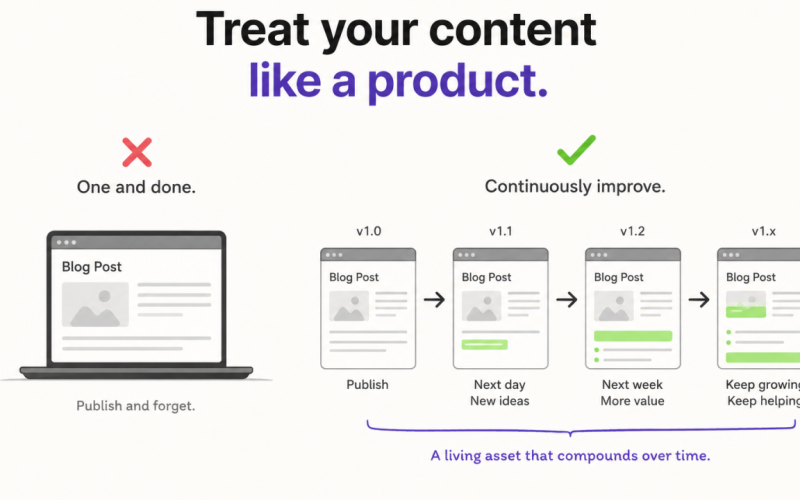
If you have been blogging for a while, you know the feeling. You have dozens of old articles sitting on your site. Some still rank. Some are slowly slipping. And you never have time to go back and fix them, because there is always a new article to write.
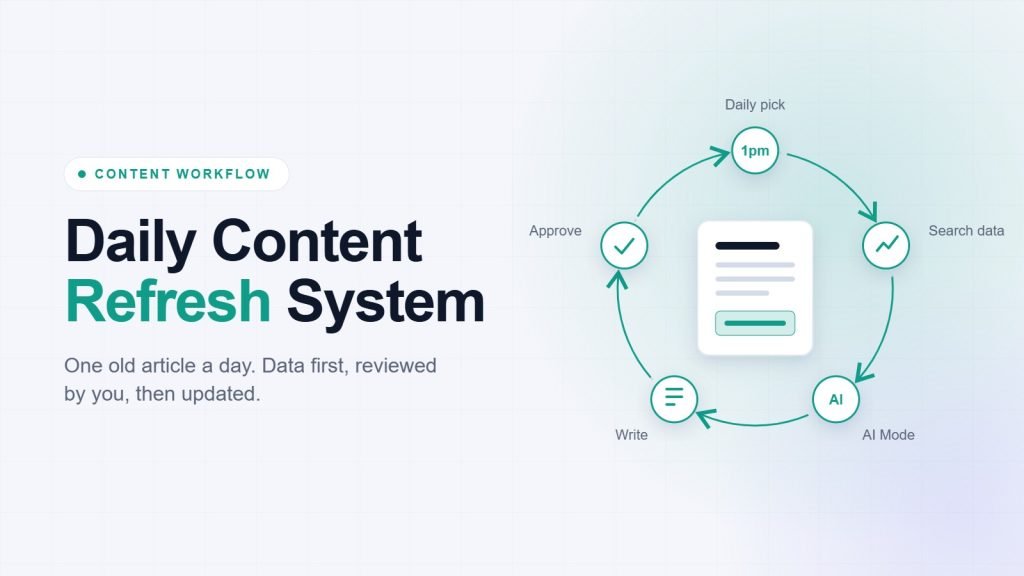
That was me. I have written 73 articles across four sites, and most of them were getting older every day. So I sat down with Claude and built a system that refreshes one article every single day, while I only review and approve.
In this article, I will show you exactly what I built, the steps in the workflow, and how you can set up the same thing for your own blog. You can even download the skill file at the end.
Key Takeaways
- One article per day: a scheduled task picks the next article automatically, so the work never piles up.
- Data before writing: Google Search Console and Google AI Mode tell Claude what readers actually search for.
- Small, useful changes: only 2 or 3 new sections per article, written in my own style.
- I stay in control: nothing goes live until I approve it.
What Is a Content Refresh Workflow?
A content refresh workflow is a repeatable process for improving articles you have already published. Instead of rewriting everything, you find what is missing or outdated, add the parts that help readers, and leave the rest alone.
The key word is repeatable. Once the steps are written down, you can run them on any article, every day, without starting from zero.
Why Refresh Old Articles Instead of Writing New Ones?
- The page already exists: it has links, history and some rankings, so small improvements can move the needle faster than a brand new post.
- Search keeps changing: queries, competitors and facts change, so a good article from last year can quietly fall behind.
- It is cheaper: a focused update takes a fraction of the time of a new article.
- AI search needs fresh answers: clear, direct answers to follow-up questions help your content show up in AI results too.
What I Needed From the System (Project Requirements)
Before building anything, I wrote down what the system had to do:
- List every article I have written across wpxpo.com, wowrevenue.com, wowoptin.com and getwholesalex.com.
- Pick one article per day at 1pm, with no reminders from me.
- Use real data and real research, not guesses.
- Write in my easy, conversational style.
- Keep changes small: 2 or 3 sections, not a full rewrite.
- Send me the draft to review, and edit the live article only after I say yes.
To make this work I used Claude with a scheduled task, the browser (Claude in Chrome) for Search Console and the live edits, and a saved writing-style skill.
The Workflow, Step by Step
Here are the ten steps the system runs on every article.
Step 1: Build the Article Inventory
The system needs a master list of everything I have published. I asked Claude to list all my articles and save them in an inventory file, with the title, URL, post ID, last modified date and a status like pending or finalized.
My first attempt only found 14 articles, which I knew was wrong. The fix was to read each site’s WordPress REST API instead of the page text. That gave the real total of 73 articles. The lesson: always check the first answer against what you know.
I set the order too. All wpxpo.com articles come first, oldest update first, then the other sites. I also marked two articles to skip.
Step 2: Schedule the Daily Run
Next, I created a scheduled task that runs every day at 1pm Dhaka time. Each run opens the inventory, picks the next pending article and starts the process. Articles waiting for my review are skipped, so nothing is picked twice.
Step 3: Read the Article and Find the Intent
Claude reads the full article, not a summary. It notes the main topic, the user intent, the search intent, the current headings, the links already in the article and anything that looks outdated, like prices or steps.
This tells us what the article is trying to do before anyone suggests a change.
Step 4: Check Search Console Queries
This is where the real insight comes from. Claude opens Google Search Console, filters the report by the article’s page URL, and reads every query that page appears for over the last 3 months.
Then it acts like an SEO specialist. It groups queries by intent, ignores the noise, and looks for queries that sit around positions 8 to 30 with few clicks, because those are the easiest wins.
On my product sorting article, one query, how to manually sort products in woocommerce, had 350 impressions at position 20. The article had the answer, but my headings did not use those words. So the fix was to rename two headings and add a direct answer at the top. No big rewrite needed.
Step 5: Check Google AI Mode Follow-Up Questions
I added this step late, and I love it. Claude opens Google AI Mode, types the main keyword and reads the whole answer. At the end, AI Mode asks follow-up questions, like whether you want to sort manually or automatically, or whether a page builder is involved.
Those questions are what real readers wonder next. If my article does not answer them, I add one or two as short FAQs. This helps both normal search and AI search.
Step 6: Research the Top 20 Results and Find the Gaps
Claude then reads the top 20 results for the keyword and notes what they cover. It compares that with my article and lists the gaps: missing topics, thin sections and outdated parts.
Now the decision has three sources behind it: Search Console, AI Mode and the competitors.
Step 7: Write Only 2 or 3 Sections in My Style
From all those ideas, Claude picks the 2 or 3 changes that add the most value. Everything else goes into a Parked ideas list, so I can use it later.
The writing uses my writing-style skill: short paragraphs, plain words and a friendly tone. This rule came from my own feedback after the first drafts had too many changes.
Step 8: Add Internal Links and Improve the Title
Every refreshed article also gets 4 or 5 internal links to my other articles. Claude uses the words already in the article as anchor text whenever possible. Only when needed does it add a few extra words. And every link opens in a new tab.
The title gets a check too. It should be CTR friendly and no more than 56 characters. If it already fits, Claude leaves it alone. The URL never changes.
Step 9: Send Me the Draft for Review
Claude saves the draft as a docx in my Automation folder and sends the same content in the chat: the title check, the Search Console findings, the AI Mode questions, the proposed text, the link list and the parked ideas. I read it and give feedback, and Claude edits it again if needed.
Step 10: Approve, Then Edit the Live Article
Only after I approve, Claude opens the live article in WordPress through Chrome. It changes just the approved parts: the new sections, the renamed headings, the links and the title. Then it checks the front end to make sure everything shows up. Nothing else on the page is touched.
What the Final System Looks Like
Every day at 1pm, a draft lands in my chat. I spend a few minutes reviewing it. If it looks good, I say so, and the live article gets updated. That is about the right amount of human work for a process that used to feel impossible.
How to Build This for Your Own Blog
You do not need my exact setup. Here is the simple version:
- Make an inventory of your articles with a status for each.
- Connect Search Console so the system can read page-level queries.
- Add your writing style, as a short description or a skill.
- Set your rules, like how many changes per article and the title length.
- Schedule it, and always keep an approval step before anything goes live.
To save you time, I turned my workflow into a universal skill. Download it below, fill in your own sites and style, and you are ready.
Preview the skill
---
name: daily-content-refresh
description: Refresh one published blog article at a time: read it, check Google Search Console queries and Google AI Mode follow-up questions, research the top results, then draft 2-3 high-value changes, 4-5 internal links and a better title for review. Use when asked to refresh, update or optimize an existing article, or to run a daily content refresh.
---

# Daily Content Refresh

Refresh ONE existing article per run. Draft first, get approval, then edit the live site. Never touch the live site before approval.

## Setup (fill these in once)
- Sites and author/archive pages: <list your sites here>
- Inventory file: <path>/blog-inventory.json (fields: title, url, post_id, last_modified, status = pending | draft_ready_awaiting_review | finalized_published | skipped)
- Writing style: <name of your writing-style skill, or 5 lines describing your voice>
- Search Console property for each site: <property URLs>

## My rules
1. Propose only 2-3 new or modified sections. Park every other idea in a "Parked ideas" list.
2. Keep the tone easy and conversational: short paragraphs, plain words.
3. Add 4-5 internal links to other articles of mine. Use the existing words as anchor text where possible; add a few contextual words only when needed. No duplicates.
4. Every link you add opens in a new tab: target="_blank" rel="noreferrer noopener".
5. Title: max 56 characters and CTR-friendly. If it already fits, leave it. Never change the URL slug.
6. Do not invent facts. Flag anything unverified with [CHECK].

## Steps
1. Pick the next article marked pending (oldest-modified first). Read it in full. Note its topic, user intent, search intent, outline, existing links, title length and any dated facts.
2. Search Console: open the Performance report, set the date range to 3 months, add a Page filter for this article's URL, switch to the Queries tab and show 50 rows. Group queries by intent and ignore irrelevant ones. Look for queries at positions 8-30 with few clicks and for high-impression, low-CTR queries. Decide which headings or lines to rename and which topics to add. Remember Search Console hides rare queries.
3. AI Mode: open Google AI Mode, type the article's main keyword and read the answer to the end. Note the follow-up questions it asks and the sources it cites. Pick 1-2 real reader questions your article does not answer and draft them as short FAQ entries (a question heading plus a 2-4 sentence answer). Skip this if the article already covers them.
4. Research: read the top 10-20 results for the keyword (not your own). Note headings, subtopics, FAQs and fresh facts.
5. Gap analysis: list what competitors cover that you do not, what is outdated, and the best internal-link spots.
6. Draft: pick the 2-3 changes that matter most (GSC + research + AI Mode). For each give the type (NEW or MODIFY), the exact location, the old text if MODIFY, the target query and the final text.
7. Save a doc named YYYY-MM-DD_<site>_<slug> and also send the same content in chat: title check (current vs proposed with lengths), GSC findings, AI Mode findings, proposed text, internal links table (anchor, location, URL), parked ideas, facts to check. Set the inventory status to draft_ready_awaiting_review. Stop and wait for feedback.

## Live edit (only after approval)
In the WordPress block editor, change ONLY the approved parts: add links, rename headings, insert new blocks (insert bottom-to-top), update the title, save. Then check the front end for the links, headings, FAQs and title. Set the status to finalized_published.
Frequently Asked Questions
Can I Do This Without Coding?
Yes. You just talk to Claude, review the drafts and give feedback. Every rule in my workflow started as a plain sentence in a chat.
How Many Articles Should I Refresh Per Day?
One is enough. A single well-researched update beats several rushed ones, and it keeps the review easy.
Will This Work on Any CMS?
The research, drafting and review steps work for any site. The live edit step in my version is built for WordPress, so on another CMS you would change that last step.
Is It Safe to Let AI Edit My Live Articles?
It is, if you keep an approval step. In my setup, nothing goes live until I say yes, and only the approved parts get changed.
Summing Up
I did not plan this system on day one. I built it by talking, reviewing and turning every piece of feedback into a rule. That is the real trick: start simple, check the output and keep improving.
Try the skill on one of your old articles and see what comes out. If you have questions, feel free to ask in the comment section.